
I noticed someone was manually concatenating a range of cells from a spreadsheet to a database query. How tedious! I knew there was an easy way to automate this busy work.
This illustrates the starting point and the desired results:

First, I tried the CONCATENATE() function. However, it does not allow a range of cells such as
=CONCATENATE(A1:A6). That just yields
#VALUE! because CONCATENATE() requires each parameter to be an individual cell such as
=CONCATENATE(A1;A2;A3;A4;A6). Beyond that problem, I had these requirements:
1. The length of range is somewhat arbitrary. Sometimes it is 5 and sometimes 5000.
2. A delimiter should be placed between the cells. Instead of
3795 3974 9725 I require
3795, 3974, 9725.
3. I needed to get this problem solved quickly and move on.
A solution
Remembering the computer science class on algorithms, I devised a strategy using
recursion. Here is how to create a reusable template to do the operation:
- In cell B1, type =A1 .
- In cell B2, type =IF(LEN(A2)=0;"";B1 & ", " & A2) .
- Copy cell B2.
- Highlight cells B3 down to somewhere like B500
- Paste
- Save the document as a template (ODF .otc or Excel .xlt format).
Here is how to use the template:
- Open the template document just created.
- Copy your cell range from your other spreadsheet.
- In the new template, paste into A1. (This assumes your data source was vertical. If your data source were horizontal, use Edit > Paste Special with the Transpose option.)
- Find the last non-blank cell in column B.
- Use that cell as appropriate (for example, by copying it to another application).
Final results
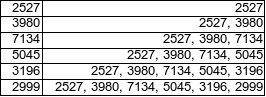 Conclusion
It would have been elegant to do this in a more compact way. However, I did quickly accomplish the task without any macro programming, and this method works across platforms. The only retraining between Calc and Excel is that Calc uses semicolons to delimit function parameters while Excel uses commas.

 First, I tried the CONCATENATE() function. However, it does not allow a range of cells such as =CONCATENATE(A1:A6). That just yields #VALUE! because CONCATENATE() requires each parameter to be an individual cell such as =CONCATENATE(A1;A2;A3;A4;A6). Beyond that problem, I had these requirements:
1. The length of range is somewhat arbitrary. Sometimes it is 5 and sometimes 5000.
2. A delimiter should be placed between the cells. Instead of 3795 3974 9725 I require 3795, 3974, 9725.
3. I needed to get this problem solved quickly and move on.
A solution
Remembering the computer science class on algorithms, I devised a strategy using recursion. Here is how to create a reusable template to do the operation:
First, I tried the CONCATENATE() function. However, it does not allow a range of cells such as =CONCATENATE(A1:A6). That just yields #VALUE! because CONCATENATE() requires each parameter to be an individual cell such as =CONCATENATE(A1;A2;A3;A4;A6). Beyond that problem, I had these requirements:
1. The length of range is somewhat arbitrary. Sometimes it is 5 and sometimes 5000.
2. A delimiter should be placed between the cells. Instead of 3795 3974 9725 I require 3795, 3974, 9725.
3. I needed to get this problem solved quickly and move on.
A solution
Remembering the computer science class on algorithms, I devised a strategy using recursion. Here is how to create a reusable template to do the operation:
 Conclusion
It would have been elegant to do this in a more compact way. However, I did quickly accomplish the task without any macro programming, and this method works across platforms. The only retraining between Calc and Excel is that Calc uses semicolons to delimit function parameters while Excel uses commas.
Conclusion
It would have been elegant to do this in a more compact way. However, I did quickly accomplish the task without any macro programming, and this method works across platforms. The only retraining between Calc and Excel is that Calc uses semicolons to delimit function parameters while Excel uses commas.

 Subscribe in reader
5 comments:
Great solution, but still more manual than I need. Can't believe CONCATENATE() doesn't take a range!
Hi I'm trying to do something similar. I have a bunch of applications (In Categories) and which languages they support and I'm trying to figure out whether each countrie's official language fits into any of them. To do this I am using a function a bit like yours to concatenate them then do a search on that concatination (Really Ugly I know but meh)...
My Formula basically examines whether a program is in the same category as the program preceding it and then concats based on whether they are.
=IF(COUNTIF($Z$2 = $Z$1); ""; Z1 & "," & AA2)
For some reason it's not working, could really use some help.
The numbers are formatted as such because I didn't think to parse them into text and Calc seems to mess up a lot of values when you change decimal numbers to text.
I'm getting pretty frustrated and could really use some help Ninja.
jorgen near uoguelph w/ ca
Cheers!
All you need to do is =CONCATENATE(A1,", ",C1) in cell C2, where A1 = your first value, and C1 is blank.
Then select cell C2, drag down the box in the lower-right corner of that cell.
Hehe. Thank you, S!!!
Thank you this really helped me!
Post a Comment