
The following are several reasons you may want this alternative method for installing OpenOffice.org on Windows:
- You need to install OpenOffice.org without local administrator rights.
- Your system administrator has set policies to prevent this installation.
- You need to install OpenOffice.org without the system integration (file associations and menu shortcuts).
- You need to install OpenOffice.org on portable media (such as a USB disk). Roll our own Portable OpenOffice.org!
- You need to install multiple versions of OpenOffice.org in parallel. For example, you can install and simultaneously run versions 2.0.2 and 2.3.1.
- The standard installation method fails.
- You need to perform a network installation on a server.
For OpenOffice.org 3, see Secrets of OpenOffice.org 3 alternative installation.
If none of these apply to you, you may instead wish to use the standard installation.
Background
OpenOffice.org version 2 and later use a two-phased installation:
- The Nullsoft Installer .exe unpacks several files to a temporary folder on the desktop. Then, it automatically starts the next step.
- The Microsoft Windows Installer performs the actual installation.
A benefit of this system is that the Nullsoft Installer allows a much smaller download while the Windows Installer is Windows' native and preferred installation system.
OpenOffice.org simply installs without significant registry changes or support files (such as .DLLs) installed in common places (such as C:\WINDOWS\SYSTEM32). That makes the OpenOffice.org application easy to relocate to different folders—even on different computers.
Procedure: Method 1
To perform the alternative installation using only one computer, follow these steps to perform what is called a "Network Installation." Don't worry about the "Network" name if you do not use a network.
- Download OpenOffice.org. Depending on the version, language, and JRE option, the file will have a name like OOo_2.3.1_Win32Intel_install_en-US.exe.
- Run the downloaded file.
- Click Next and then Unpack.
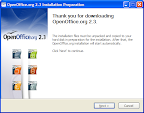
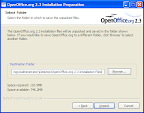
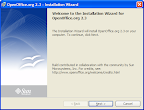
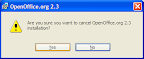
- Click Cancel, then Yes, then Finish.
- On your desktop, open the newly-created folder which has a name like OpenOffice.org 2.3 Installation Files (which varies depending on the OpenOffice.org version).
- In the menu, click the File > New > Text Document.
- Name the new file install.bat. Windows may warns you: "If you change a file name extension, the file may become unusable. Are you sure you want to change it?" Click Yes to accept the warning.
- Right click on install.bat and choose Edit.
- Type the following in the file:
msiexec.exe /A openofficeorg23.msi ALLUSERS=""NOTE: The filename openofficeorg23.msi may change slightly depending on your OpenOffice.org version. Use the name of whichever filename you actually have. In case Windows is hiding filename extensions, look for the one file with type Windows Installer Package. - Save the file and close Notepad.
- Run the batch file (by double clicking on it).
- Follow the instructions in the installation program. If necessary, adjust the installation path. Whichever installation path you choose, add something like OpenOffice.org to the end of it. For example, instead of just C:\, use c:\OOo to keep all the files organized.
Now OpenOffice.org is installed. There are no file associations or menu shortcuts, so you must start the application directly. If you installed it in (for example) C:\OOo, then run C:\OOo\Program\SOffice.exe. Then, there are two ways to open existing documents.
- Click File > Open, or
- Drag the file and drop it on the blank OpenOffice.org window.
Procedure: Method 2
If you have local admin privileges on computer X but not computer Y, you can use this procedure.
- Install OpenOffice.org normally on computer X.
- Copy the OpenOffice.org installation folder (typically something like C:\Program Files\OpenOffice.org 2.0) from computer X to computer Y.
Procedure: Uninstall
To uninstall methods 1 or 2, simply delete the folder with the application.
Procedure: Method 3
Download and use Portable OpenOffice.org.
Procedure: Network Installation
Did you actually want to do a network installation (also called an administrative installation)?
- Follow Method 1 (above) to install OpenOffice.org centrally on a server.
- On each desktop, run the openofficeorg23.msi created in the installation target directory. This step sets up the system integration (file associations and menu shortcuts).
Applies to
- OpenOffice.org version 2
For OpenOffice.org 3, see Secrets of OpenOffice.org 3 alternative installation - Microsoft Windows XP (and probably XP, Vista, Server 2003, but not tested)

 Subscribe in reader
21 comments:
No go sorry. Installing Openoffice.org 2.3.1 using method 1 on XP, doesn't work here. Installation stops with an "Error 1925: You do not have sufficient privileges...."
There is a portable version of OO.org out there which I'll try next.
cheers,
--
Simon
Simon,
Sorry. Try it again with the command line argument ALLUSER="". I just added that in and tested it. Otherwise, you could use Portable OpenOffice.org (as you said) or Method 2.
Andrew
Hi, thank you very much for this tutorial, it's very useful!
Anyway, I have found a couple of mistakes that lead to the error posted by Simon:
- Step 4 should be "Click OK, then Finish".
If you click "cancel" on the temporary window "preparing installation" something goes wrong later, and you get Simon's error.
- On Step 9, the command line option for msiexec.exe is ALLUSERS="" and not ALLUSER="".
I tried it thrice and it works.
Bye!
Federica.
Federica,
Thank you: I incorporated #9. However, I understand #4. Because you may have a different version or there may be some other miscommunication, I added some screenshots.
Andrew
I think you are right about #4. In fact, the "Click next to install" window doesn't appear in my version, the installer just starts without asking.
I tried with the Italian version, maybe Sun doesn't trust italians.. ;)
Federica.
Hi! I tried method 1, because the 2.3.1 installation process was asking for openofficeorg23.msi. Went through the steps, created the file, but when I double-clicked on it, came back to where I was earlier - it looked for the same file. When I pointed to it in the installation folder, it said the file is "not a valid installation package for the product OpenOffice.org 2.3". Any ideas, anyone?
do you think the network installation procedure is appropriate for a network of users with roaming profiles ?
system integration doesn't work on my network. i have to do file association for each user. may be i should use a network type installation ?
and how to do it in a silent way ?
step 1- network
msiexec.exe /qn /A openofficeorg23.msi ALLUSERS=""
but the path is lacking.
how do i specify it on the command line ? something like PATH="c:\ooo"
step 2 - desktop
msiexec.exe /qn /i /openofficeorg23.msi
seems sufficient but i'm wondering if windows policies tolerates that i start msiexec while being a user without privilege ... does it ? i'll have to check.
--- eric
PS
while writing down this i found answers here :
http://wiki.services.openoffice.org/wiki/Documentation/How_Tos/Automatic_Installation_on_Windows
step 1 : path is INSTALLLOCATION
But i still wonder if it's appropriate for roaming profiles and my problem with file associations.
Andrew,
I don't know how else to contact you to ask this:
Any suggestions on a hosting company that provides:
1) Windows box running PHP5
2) OpenOffice installed so I can use PHP COM commands
Thank you.
Jack
Jack: I doubt you'd find OpenOffice.org preinstalled. You'll have to do it yourself, so start with a web search for Windows VPS.
Hi,
I've followed Method 1 to install on a file server for a per user base.
On the desktop machine I've simply double-clicked on openofficeorg23.msi but this results in a large amount( ~300MB ) of disk space usage, also selecting "network access" for all the features. So, I doubt that simply performs file associations and menu shortcuts creation.
Please, note that the Wizard do not show the INSTALLPATH if network access has been selected but use the default or the last applied by user.
However, after installation Windows ask the user for secure access to launch QuickStart Remotely.
Hi, tried both method 1 and method 2 for the new OOO3, unfortunately neither of them works (tried them with OOO2, they did work then). In either case, if you doubleclick a say swriter.exe, you get "The application has failed to start because the application configuration is incorrect. Reinstalling the application may fix the problem." Running swriter.exe from command line says "The system cannot execute the specified program."
I tried both the 1) msiexec method; and 2) installing OOO3 (all works), copying the folder, uninstalling 0003 - then running from copied folder: again results with the same errors.
It seems OOO3 uses some "application configuration" - either environment variables, or some init file, or both - but I cannot tell what I should change to make it work portable.. Any ideas?
Step 1 also works on XP for a OpenOffice3.0 installation
It does not work for 3.0
... Waiting for portable app
I've just posted my problem with this method for OOO3 (on XP SP3) on OpenOffice Wiki:
Talk:Run OOo versions parallel - hopefully it may get some of the OOO developers attention :)
Finally, I think I got this solved for OOO3... So, for a 'portable' - administrative - install of OpenOffice3, instead of doing 'msiexec /a ..', one should do 'setup /a', as per:
Step 2 – Create Network Installation Images | Open Office Technology
http://openofficetechnology.com/node/26
Sheesh - so thankful when an application offers this on its own, instead of having to resort to portable apps :)
I installed Open Office 2.0.0 on a computer running win98se. It works quite well but I get that obnoxious nag screen asking me to register every time I boot or open the program. I cannot register because the computer that I installed it in is not connected to the internet. Is there some way I can get rid of that annoying nag screen? I got no help from Sun.
Anonymous Win98 user: Try resetting the OpenOffice.org profile. If that doesn't help, search OOoForum.org: I believe the same question was asked there
Thanks for the info, Andrew, but I'm getting an error when I try to deploy this across a network:
When I run the OO.org setup file from a client server and tell it to install to run over the network, it tells me that I haven't selected any files to be installed.
This is for OO3 installing to a Windows 2k machine.
Thanks for the info. I tried it with OOo v3.0 and v3.0.1, both have the configuration error as other indicated. I then tried v2.4.2 and it works. I suspect v3 use new DLLs from MS and it is expecting the file at certain location and registered etc. Just a guess.... Portableapp.com version work also, but I prefer to have my own setup. For now, I will just use 2.4.2 on USB stick until there is a way to setup v3.0 later. I'm sure it is doable since portableapp done it. Just need to know what to do.
Another failure. This just forces you to run the msi from each machine which then proceeds to do a 400M install to each workstation.
I want a single image on the server, as I had with 241, then all you needed was a registry file to create file associations.
This seems to be a fragile PoS created in the image of MS Office, refusing to run if a single registry entry is missing.
OK folks, I got this procedure to work for a shared network install.
First, run the "setup /a" and install to a network drive.
If attempting to run soffice.exe from a workstation produces the "This application has failed to start because the application configuration is incorrect" error it means you probably need to install the MS VC++ 2008 runtimes, get them from MS. Once you install them you should be able to start soffice.exe. Now its just a matter of applying a registry file to create whatever file associations you want. Once I recognized that "try reinstalling the software" message as typical MS BS it made sense. I think that explains why some have had success while others have not.
Post a Comment