OpenOffice.org 3.0 introduces live sharing of Calc spreadsheets. Multiple people on multiple computers using multiple operating systems can edit the same OpenDocument spreadsheet at the same time.
How to use
- The first user should open a Calc spreadsheet saved in OpenDocument format in a network location accessible to others.
- Click Tools and then Share Document. This setting persists for the document even after the last user closes the document.
- Check the box Share this spreadsheet with other users and click OK
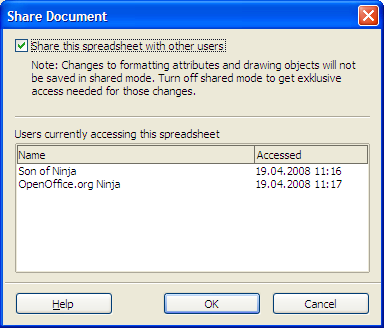
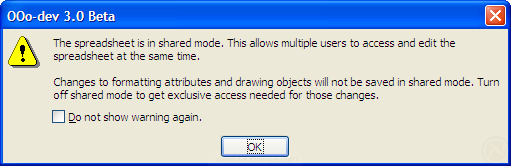
- Other users may now open the spreadsheet. Each user will see this warning:
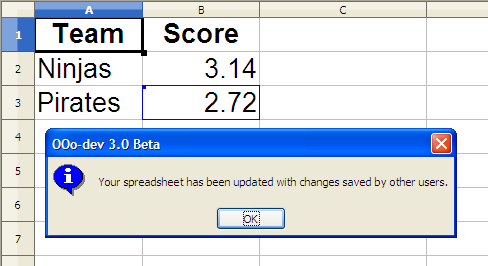
- Periodically each user should save the spreadsheet to merge his change and refresh changes from other users. In other words, the changes are only updated during saving. If there are any updates, OpenOffice.org shows a notification dialog box, and the changes will be marked with one color for each author. Here cell B3 was updated.
Conflict resolution
If two people change the same cell, the second person to merge his changes will see a dialog box called "Resolve Conflicts." It presents the choices "Keep Mine" or "Keep Other" for each conflict.

Document locking
If sharing is not enabled, the document is locked. Unlike previous versions, OpenOffice.org 3.0 shows who locked the document, how long the document has been locked, and an option to open a copy.

Competition, retraining, and limitations
Microsoft Excel has a similar feature called Share Workbook. Both applications have similar limitations on the features that can be changed while the document is shared.
OpenOffice.org locking works with the Excel application, but live sharing between the two is not possible. Two people using OpenOffice.org 3 cannot share an Excel spreadsheet: the OpenDocument spreadsheet format must be used.
Comments
This feature allows multiple users to access the same spreadsheet even when the file is set to exclusive use.
PC#1
openSUSE 11
192.168.0.2
has the shared test.ods file with 777 permission
PC#2
openSUSE 11
192.168.0.3
Can edit the shared test.ods only when the file is not opened on other PC.
But when the file is opened on other PC, this PC would only open the file in read mode.
I tried to open the file on PC#2, and simultaneously open it on PC#1 using super-user mode. It did open in Edit mode. Both of them are now able to edit at the same time. But it doesnt work vice versa because only PC#1 can super-user mode on the file.
If you are on a business network, disabling root squashing can be a security risk, but in a home network with a firewall, etc, it can be reasonably safe.
You can solve this by asking the .~sharing file owner to chmod777 the file.